
Before you begin
- Signed up with Google or Facebook? You don't have a Destify password. Use the same Google or Facebook button to sign in.
- Use the email you booked with.
- The reset email can take about 5 minutes to arrive.
Step-by-step instructions
1. Log in to your Dashboard
Go to the Dashboard login page. Don't sign in yet: you'll reset your password first.
2. Select Forgot your password?
Click Forgot your password? under the sign-in fields.
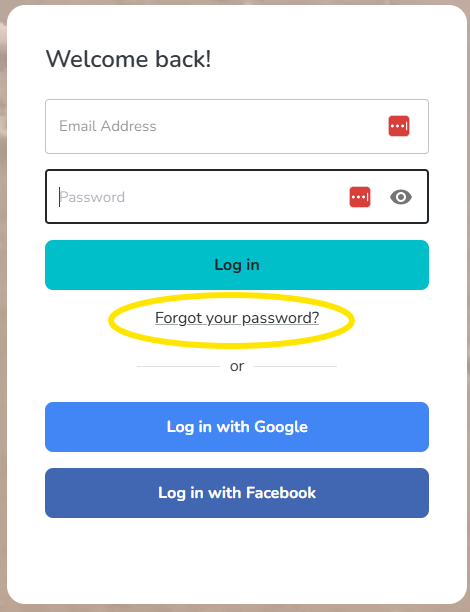
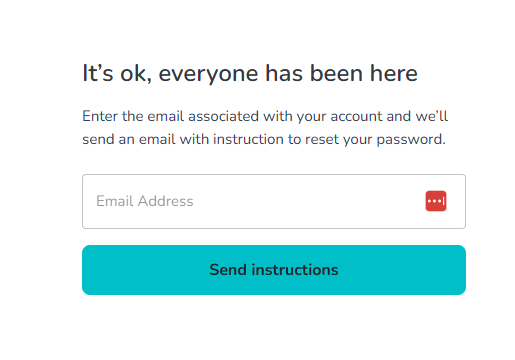
3. Enter your email
Enter the email address on your Destify account and submit.
4. Check your inbox
Look for the reset email. Not there after 5 minutes? Check spam or junk, or switch to mobile data or your home network and try again.
5. Create a new password
Click the link in the email, create a new password and sign in.
Signed up with Google or Facebook?
You don't have a Destify password to reset. Select the same Google or Facebook button on the login page to sign in.
Don't see the reset email?
Wait about 5 minutes, then:
- Check your spam or junk folder.
- Make sure you entered the email address you used to create your account, spelled correctly.
- Switch networks. Public and workplace Wi-Fi can block reset emails, so try mobile data or your home network, then request the email again.
Still nothing, or not sure which email you used? Contact us, and we'll look it up.