
Before you begin
- Sign in with the email you booked with.
- Add your flight details before the deadline so your transfer can be arranged.
- Don't have an account yet? Contact us, and we'll send you a setup link.
Watch a quick tour
Step-by-step instructions
1. Log in to your Dashboard
Go to your Dashboard and sign in with the email you booked with. If you signed up with Google or Facebook, use that same option.
2. Find your reservation
Open it from the home page, or go to My Trips, then My Rooms. If you booked more than one room, they all appear here.
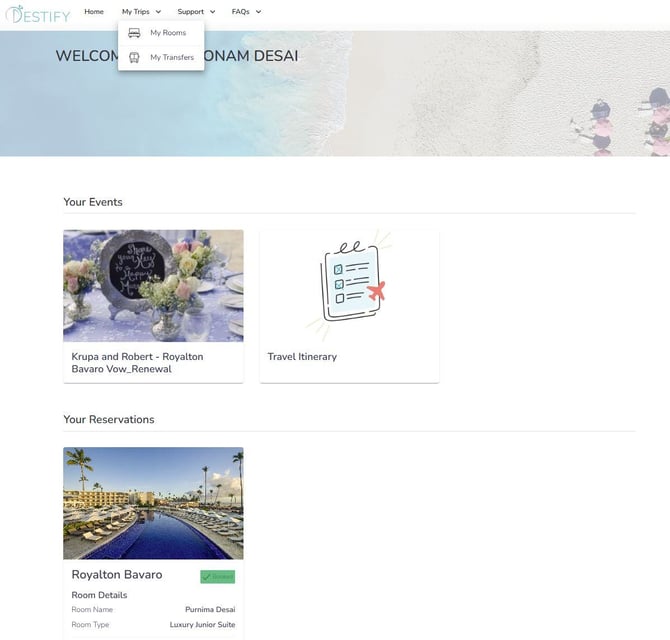
What you'll see on your reservation
- Room name and number of nights
- Check-in and check-out dates
- Guests in the room
- Total package price, including transfers if you added them
- Remaining balance and final payment date
From your reservation, you can also make a payment, view your payment history, edit your reservation, view your booking agreement, book another room, or add travel insurance. To learn how to pay, see How Do I Make a Payment?
3. View your room details
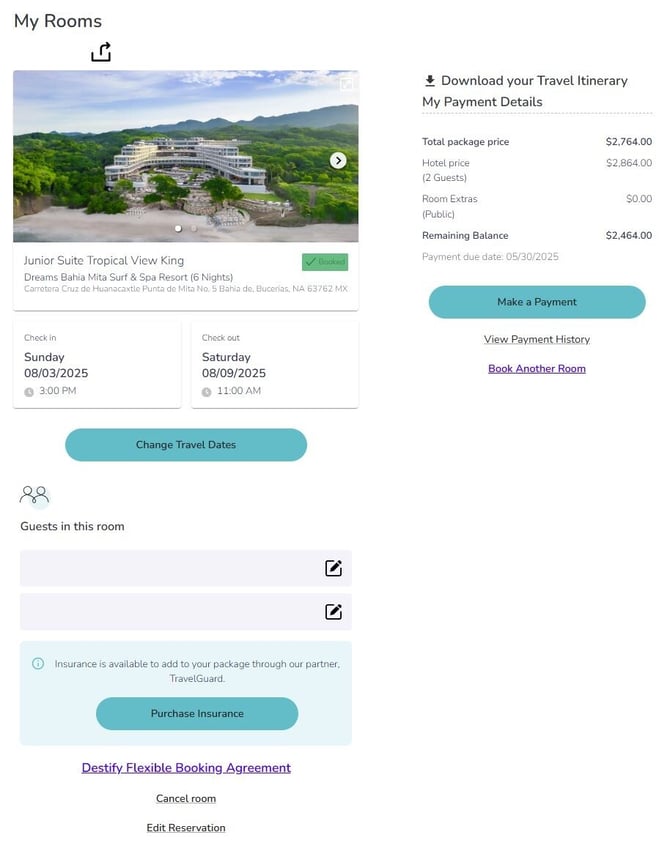
Select a room to see your dates, guests, total price, remaining balance, and final payment date.
4. Check your transfers
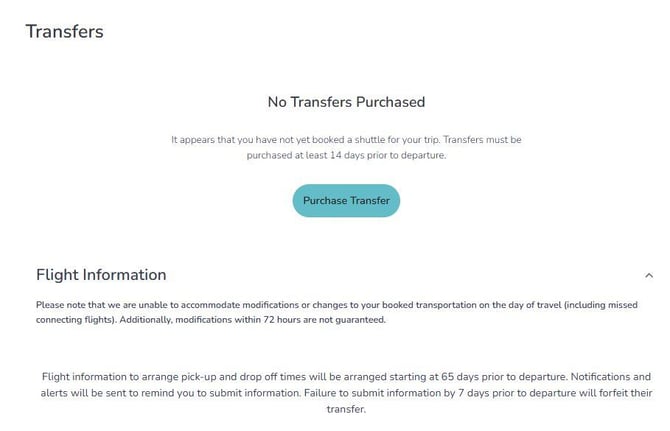
Under My Transfers, see your shuttle type, buy transfers if you didn't add them, and enter your flight details.
5. Add travel insurance
Under My Rooms, click Add Insurance, choose a plan, and complete your purchase. Your policy documents are saved in your Dashboard.
1. Log in to your Dashboard
Navigate to your Dashboard and sign in with the email you used to book. If you signed up with Google or Facebook, use that same option again.
2. Open your room
Go to My Trips and select your room.
3. Select Add Insurance
Under My Rooms, click Add Insurance.
4. Choose a plan
Review the plans and choose the one that fits.
5. Complete your purchase
Your insurance will show on your reservation, and your policy documents will be in your Dashboard.
Your airport transfers
Under My Transfers, you'll see the type of shuttle you booked. If you didn't add transfers when you booked, you can buy them here when they're available. [Screenshot: My Transfers]
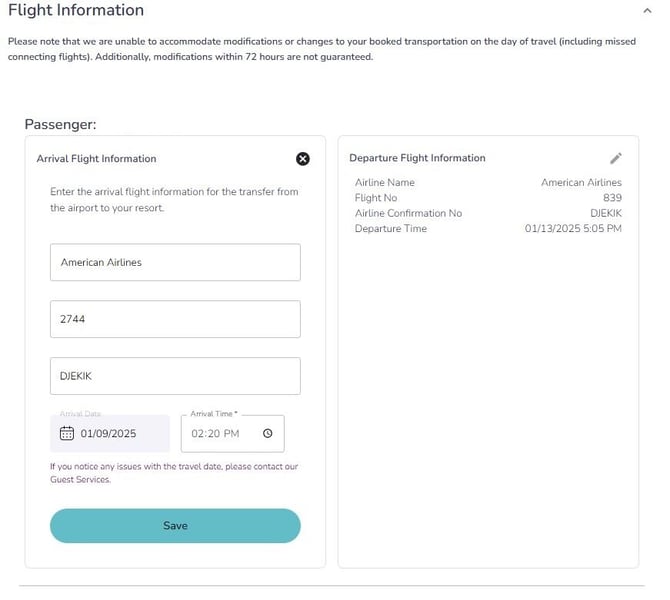
About 45 days before travel, we'll ask you to enter your flight details. Your transfer shows as pending until you do. For each arrival and departure flight, enter the airline, flight number, flight confirmation number, and date and time. For your arrival, use the flight that lands at your destination, not a connecting flight. Please enter both no later than 7 days before you travel.
Planning a wedding?
Couples get extra Dashboard features for setting up and managing their Wedding Website.